

Sprintax Calculus MFA Guide
Please note that, as per IRS regulations, e-signing tax forms in Calculus requires Multi-Factor Authentication (MFA) to be enabled.
Setting Up Multi-Factor Authentication Through an MFA App
Follow the steps below to enable MFA on your Sprintax Calculus account.
Step 1: Access Security Settings
- Log in to your Sprintax Calculus account.
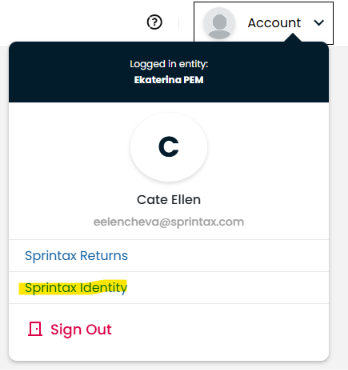
- In the top-right corner, click Account and select Sprintax Identity.
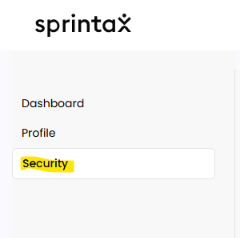
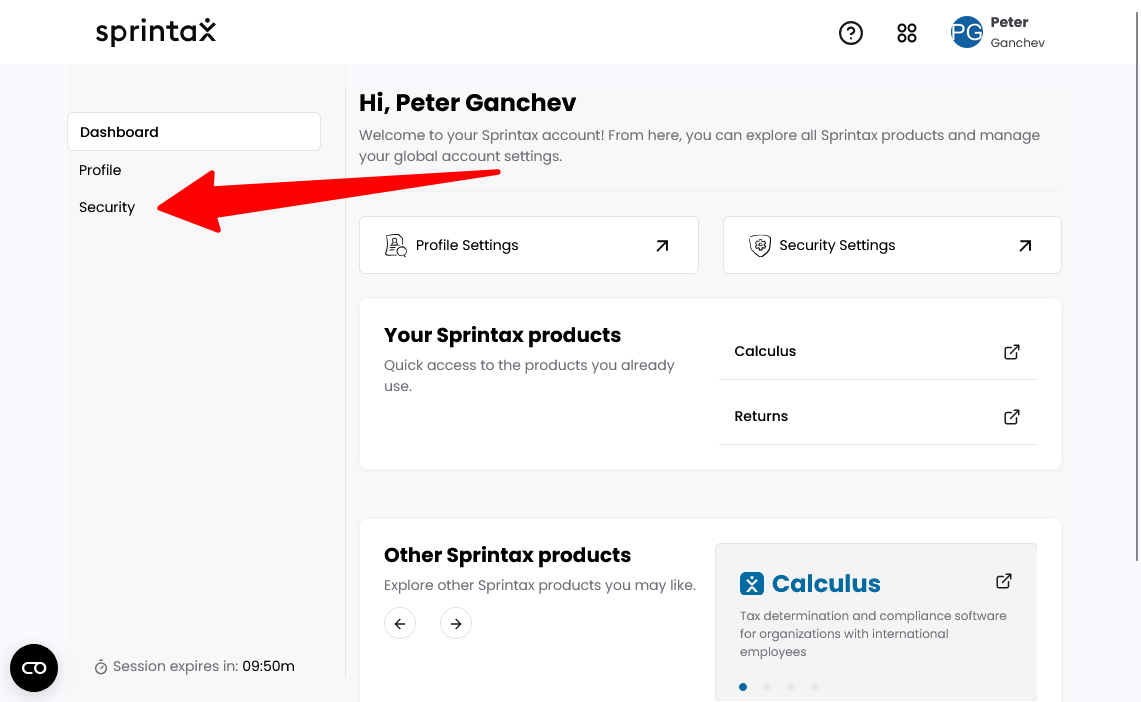
- From the left-hand menu, click Security.
Step 2: Add an Authenticator App
- Scroll down to the Authenticator app section.
- Click Add Authenticator.

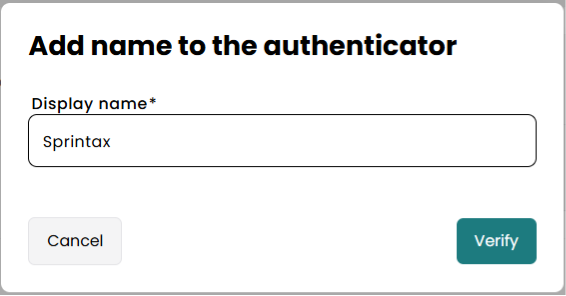
- Enter a name for the authenticator (for example, My Phone).
Step 3: Connect Your Authenticator App
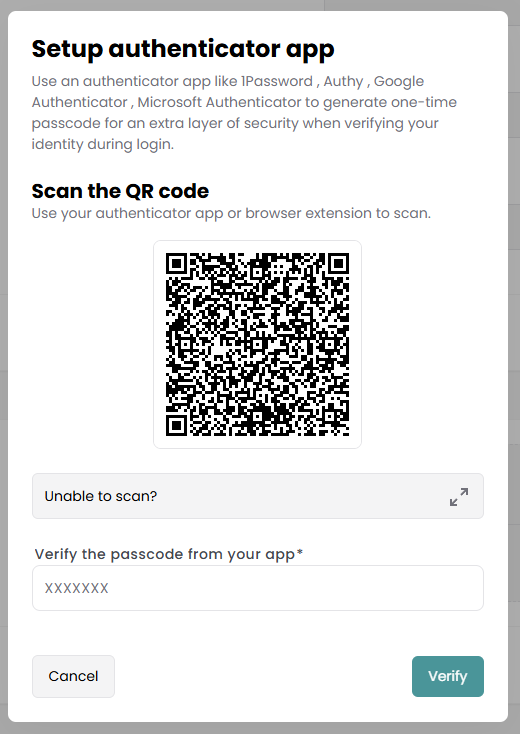
- A new window will appear with a QR code.
- Open your authenticator app on your smartphone.
- In the app, go to Settings or Add new account.
- Scan the QR code displayed in your Sprintax account.
Step 4: Confirm and Activate
- After scanning the QR code, your authenticator app will generate a verification code.
- Enter this code into Sprintax Calculus when prompted.

- A confirmation message will appear in the top-right corner of your screen, indicating that MFA has been successfully activated.

Tip: We recommend using Microsoft Authenticator, as it is easy to set up and use. If you need step-by-step instructions for Microsoft Authenticator, refer to the guidance provided by Microsoft.
Disabling App MFA
If you need to disable MFA, make sure to remove it from both Sprintax Calculus and your authenticator app.
Step 1: Remove MFA from Sprintax
- Go to Account > Sprintax Identity > Security.
- Locate your authenticator and remove it.

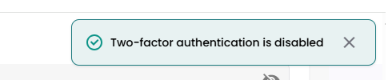
- You will see a confirmation message that MFA has been disabled.
Step 2: Remove the Account from Your Authenticator App
- Open your authenticator app.
- Delete or remove the Sprintax Calculus account from the app.
This ensures that you can successfully re-enable MFA in the future if needed.
MFA Not Working?
If you are unable to complete MFA, one of the situations below may apply.
- Authenticator App Was Deleted
- Contact your institution directly.
- They can provide you with a special reset link, valid for 24 hours, to reset your MFA.
- You Switched Devices
- Contact your institution directly.
- They will send you a 24-hour MFA reset link so you can set up MFA on your new device.
If you deleted the authenticator app from your device without first disconnecting it from Sprintax Calculus, MFA will no longer work.
Reinstalling the app and attempting to reconnect it will not resolve the issue.
What to do:
If you changed phones or tablets, your Sprintax account may still be linked to the authenticator app on your previous device.
What to do:
Setting Up Multi-Factor Authentication Through SMS
Users can register their phone number through Sprintax Identity as well.
- Log in to Calculus.
- Click Account in the upper right corner of the screen.
- Select Sprintax Identity.

- On the Identity Server dashboard, select Security.
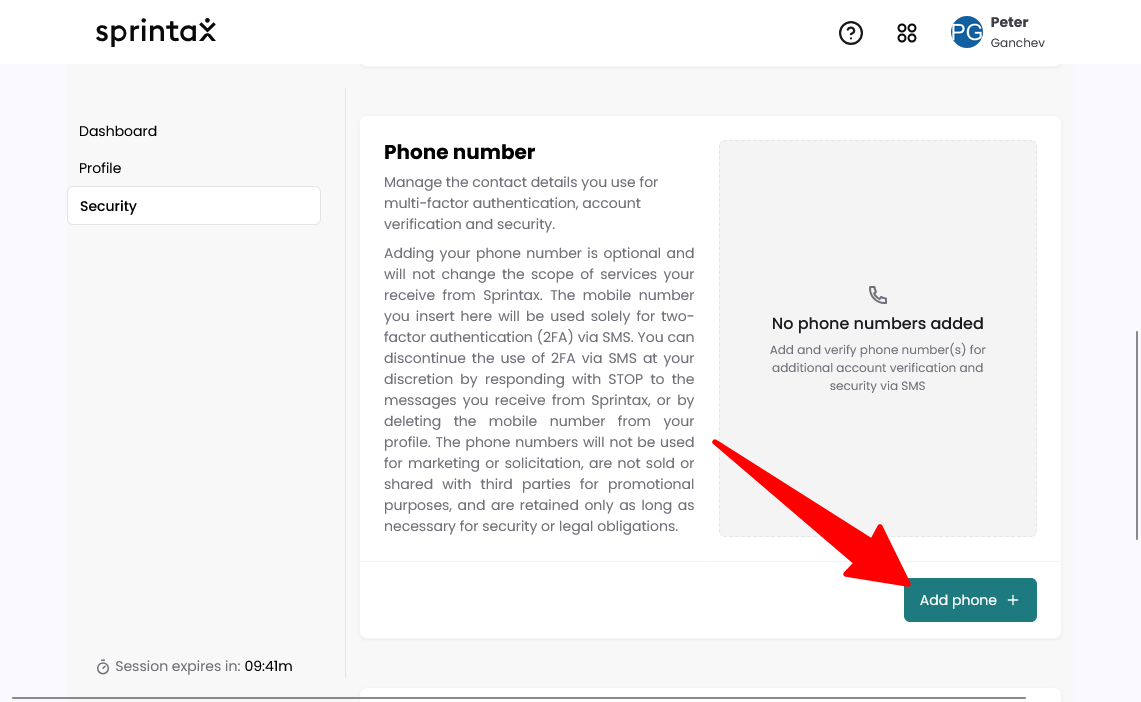
- Scroll to the bottom of the page and click Add phone.
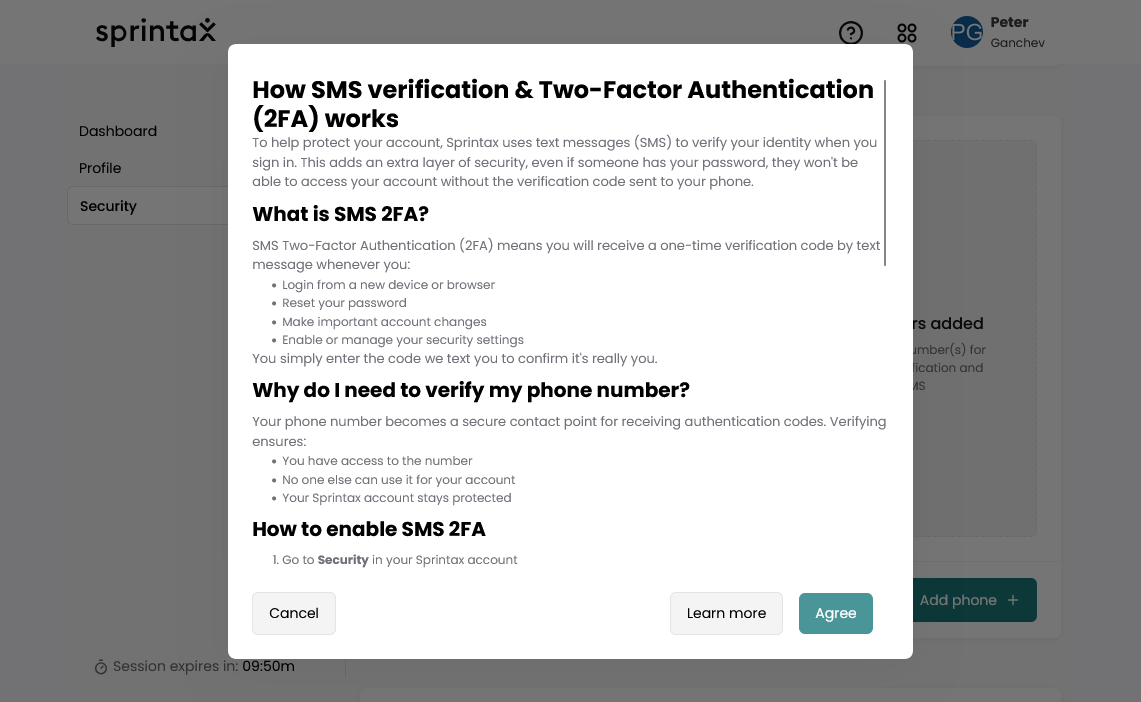
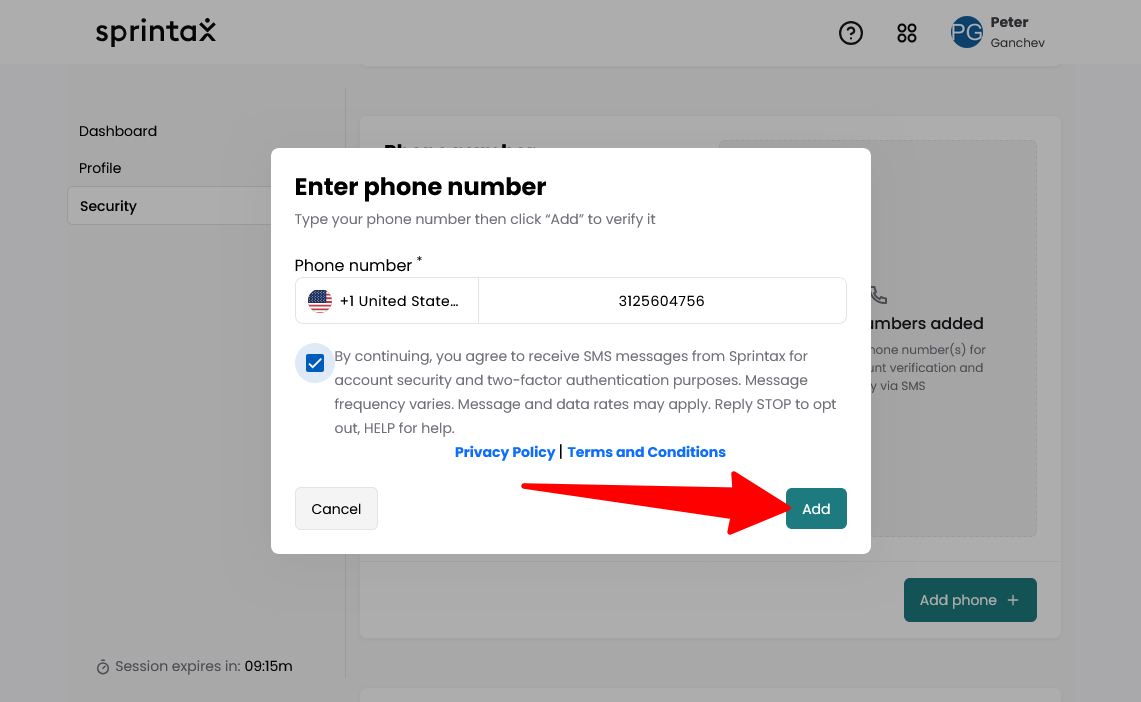
- Enter the phone number and review the conditions.
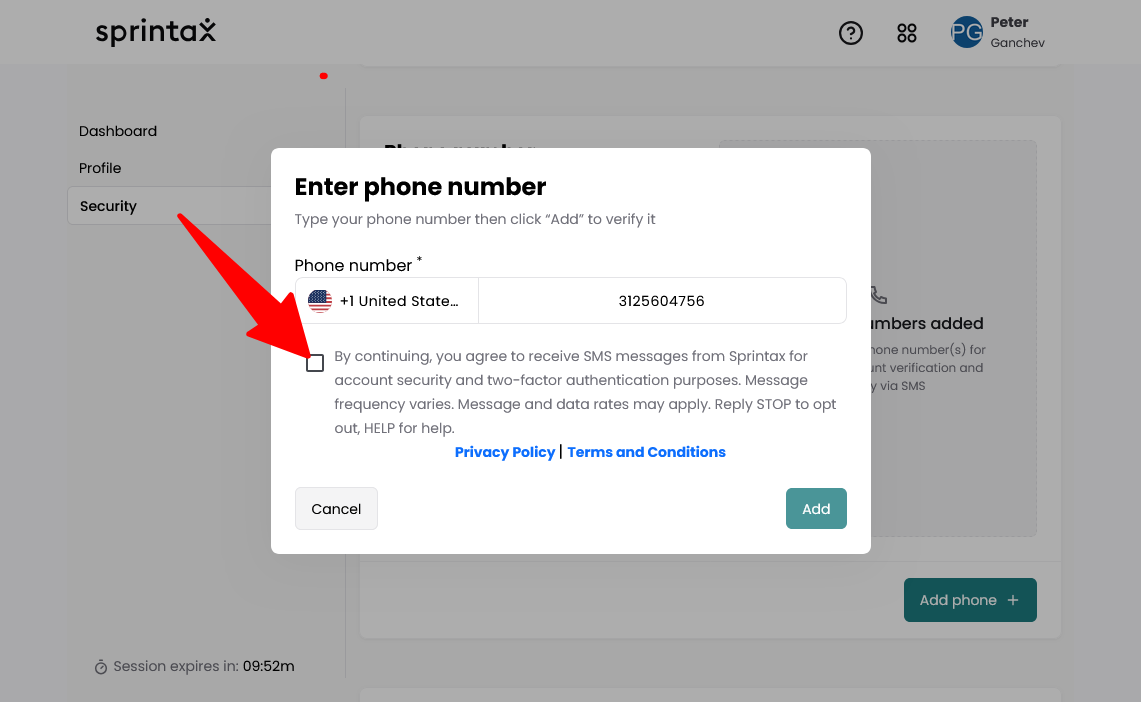
- Scroll to the end of the instructions and click Agree.
- Click Add to save the phone number.
Phone Number Verification
Once the phone number is added:
- The system will send an SMS containing a 6-digit verification code.
- The user must enter this code in the verification field to confirm their phone number.
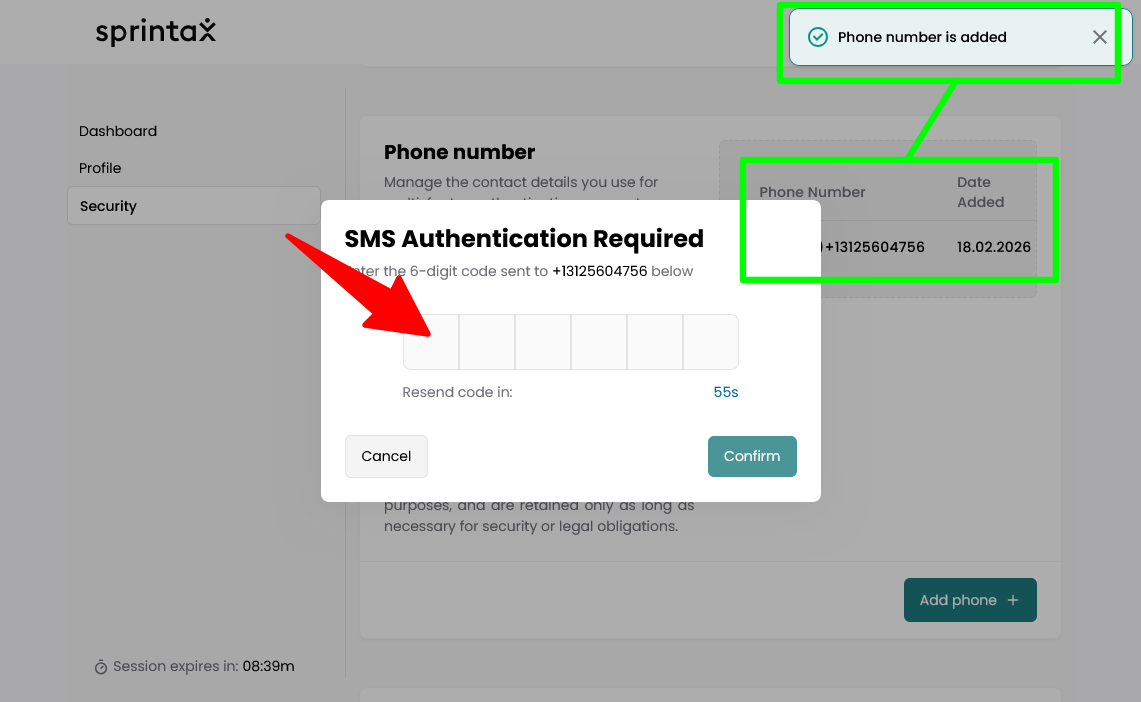
After successful verification, the phone number will appear in the account and can be used for SMS MFA when e-signing tax forms.
Removing a Phone Number
Users can remove their phone number at any time:
Navigate to the Security section in Sprintax Identity.
- Click the three dots beside the phone number.
- Select Delete.
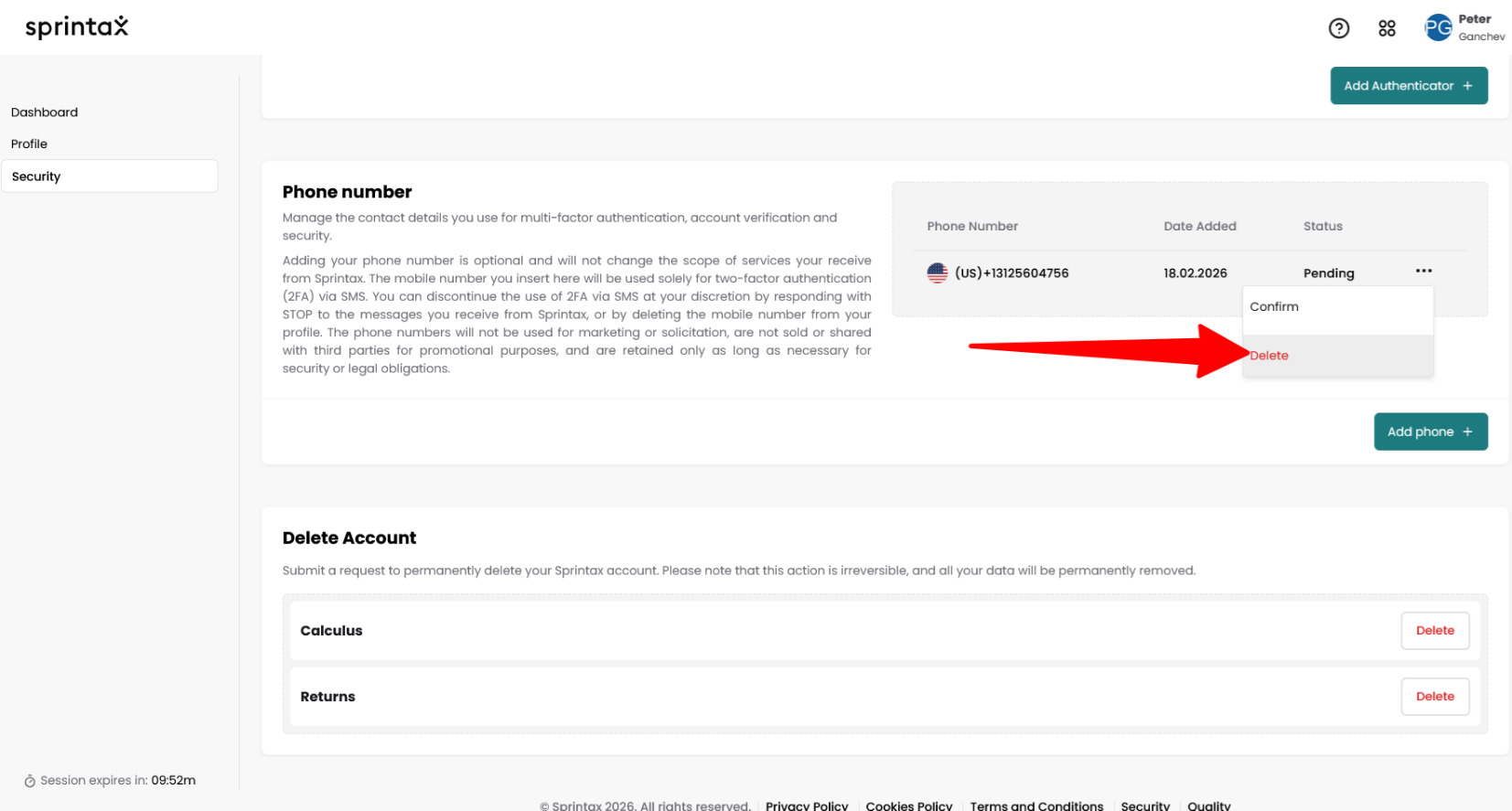
Removing the number will stop the system from sending SMS verification codes to that device.
